[contact-form][contact-field label=”Name” type=”name” required=”true” /][contact-field label=”Email” type=”email” required=”true” /][contact-field label=”Website” type=”url” /][contact-field label=”Message” type=”textarea” /][/contact-form]
How to Remove Call and SMS Forwarding: A Complete Guide
Remove Call and SMS Forwarding, In the age of smartphones, call and SMS forwarding can be a helpful feature, allowing users to divert their calls and messages to another number when they are busy, unreachable, or using a different device. However, if this feature is enabled without your knowledge, it can lead to privacy concerns and even security risks.
Many users unknowingly leave call or SMS forwarding active, or worse, become victims of forwarding scams. That’s why it’s crucial to understand how to remove call and SMS forwarding and protect your phone from unauthorized redirection.
This article covers the methods to detect, remove, and prevent call and SMS forwarding on both Android and iOS devices.
What is Call and SMS Forwarding?
This can be useful when:
- You’re traveling and using a different SIM.
- Your phone is off or out of service.
- You want someone else (assistant or colleague) to handle your calls temporarily.
SMS Forwarding, though less commonly supported by telecom operators, can allow your incoming text messages to be sent to another number or email.
While these features have legitimate use cases, they can also be misused by hackers or snoopers to:
- Spy on your calls or messages.
- Hijack your phone verification codes (like OTPs).
- Interfere with sensitive data or authentication processes.
How to Check If Call Forwarding is Active
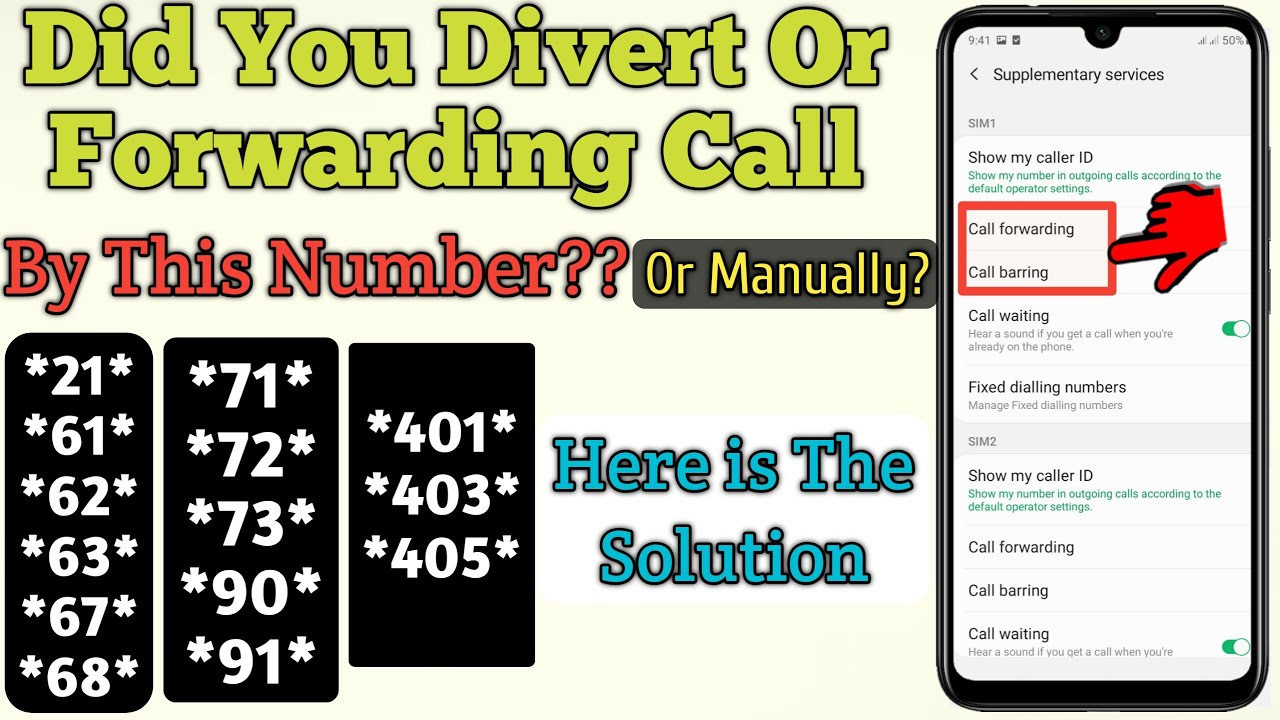
You can easily check the status of your call forwarding using USSD codes.
Common USSD Codes (Works on Most Phones):
- Check all forwarding: *#21#
- Check when busy: *#67#
- Check when unanswered: *#61#
- Check when unreachable: *#62#
Dial these on your phone’s keypad. If forwarding is active, the number where calls are being diverted will be displayed.
How to Remove Call Forwarding
1. Using USSD Codes
To disable call forwarding, dial the following codes:
- Disable all call forwarding: ##21#
- Disable forwarding when busy: ##67#
- Disable when unanswered: ##61#
- Disable when unreachable: ##62#
- Cancel all types of forwarding (master code): ##002#
After dialing, you’ll receive a confirmation message like “Call forwarding erased successfully.”
2. From Phone Settings
Android Devices:
- Open Phone/Dialer app.
- Tap on the three-dot menu or Settings.
- Go to Calls > Call forwarding.
- You’ll see options:
- Always forward
- Forward when busy
- Forward when unanswered
- Forward when unreachable
- Tap each option and select Disable or Turn Off.
iPhone (iOS Devices):
- Open Settings.
- Tap Phone > Call Forwarding.
- If it’s enabled, toggle it OFF.
Note: iPhones only show the “Always Forward” setting. Use USSD codes for full control over busy/unreachable/unanswered scenarios.
How to Remove SMS Forwarding
Most standard telecom networks don’t support SMS forwarding natively like call forwarding. However, some Android apps and services may allow message forwarding manually.
Check and Remove on Android:
- Go to Settings > Apps.
- Look for any suspicious apps like “Auto Forward SMS” or “Message Forwarding”.
- Uninstall unknown or untrusted apps.
- Check Permissions and disable SMS access for apps that don’t need it.
For iPhone:
- iOS allows Text Message Forwarding to other Apple devices (iPad, Mac).
- To disable it:
- Go to Settings > Messages > Text Message Forwarding.
- Turn off any listed devices that you don’t want to forward to.
How to Stay Protected from Unauthorized Forwarding
If you suspect someone has enabled forwarding on your number without permission, here are steps to secure your phone:
1. Dial ##002# Regularly
This code removes all types of call forwarding. Use it occasionally to ensure no hidden forwarding is active.
2. Check SIM and App Permissions
- Ensure no unknown apps have access to your SMS or call logs.
- Avoid installing apps from untrusted sources.
- Use antivirus or security apps to scan for malware or spyware.
3. Change Your Voicemail or Call Settings PIN
Some attackers exploit default or weak voicemail PINs to enable forwarding remotely. Contact your service provider to:
- Set or change voicemail PIN.
- Disable remote access to call forwarding features.
4. Use Security Apps
Install trusted security apps (like Avast, Norton, Bitdefender) to monitor unusual behavior or forwarding attempts.
5. Contact Customer Support
If you continue receiving alerts or see unknown numbers in call forwarding settings:
- Call your mobile operator’s helpline.
- Ask them to verify if any call/SMS forwarding or cloning is active.
Signs You Might Be a Victim of Call or SMS Forwarding
- You miss calls that never rang.
- Others receive your SMS or OTPs.
- Your voicemail behaves unusually.
- You notice unknown numbers linked in your settings.
- You experience unauthorized activity in your bank or social media accounts.
Final Thoughts
Call and SMS forwarding can be a helpful feature when used intentionally—but if activated without your consent, it becomes a serious privacy risk. Knowing how to check and remove call and SMS forwarding can protect your personal data, conversations, and online identity.
Be proactive. Run regular checks using USSD codes, monitor your settings, and avoid suspicious apps. A few simple steps can save you from potential fraud or unwanted spying.
Stay secure, and if you ever feel unsure—dial ##002# to cancel everything and take back control.